
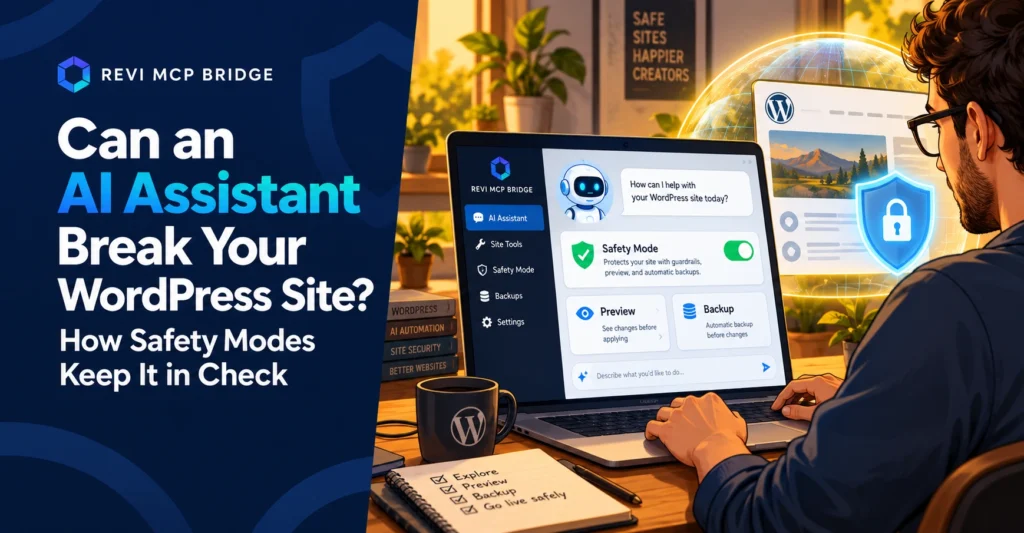
Can an AI Assistant Break Your WordPress Site? How Safety Modes Keep It in Check
Giving Claude or ChatGPT access to your site is powerful, and it is also a new way to make a costly mistake. This guide covers what can go wrong and how Revi MCP limits what an AI is allowed to do.
Safety modes
6 min read
Quick Answer
Yes, an AI connected to WordPress can break a site, usually by being allowed to do more than the task needs. The fix is to control what it can do: start read-only, grant the smallest permission that fits the job, require approval for destructive actions, and keep a log. Revi MCP builds those controls in as five safety modes.
Who This Is For
Site owners, freelancers and agencies who want an AI to work on WordPress but worry about it deleting content, changing settings or touching files it should not.
How an AI Breaks a Site
An AI assistant does not need to be malicious to cause damage. Most problems come from one of four situations:
- Too much access. An assistant that only needed to fix a typo was also allowed to change plugins or users.
- A vague instruction. “Clean up the old posts” can be read as delete.
- Instructions hidden in content. Text in a comment or form entry that the AI reads and follows. We cover this in our guide to prompt injection on WordPress.
- No way back. An edit lands on a live site with no snapshot to restore.
The Five Safety Modes
In Revi MCP, every tool call is checked against the site’s active safety mode and its own permission scope before it runs. Nothing bypasses that check.
| Mode | What the AI can do | Best for |
|---|---|---|
| Read Only | Read content and nothing else | First connection, audits, questions |
| Safe Editor | Create and edit content; destructive actions wait for your approval | Everyday content work |
| Advanced | Adds users, plugins and theme management | Site maintenance you supervise |
| Full Access | Publishes and manages settings without stopping for approval | Trusted, closely watched work only |
| Developer | Unlocks file and database tools; off by default and independent of the other modes | Theme and plugin code you own |
Approvals and the Audit Log
Modes decide what is allowed. Three more safeguards decide what happens when something goes wrong:
- Approval for destructive steps. In Safe Editor, deletes wait for you.
- Pre-edit snapshots. Page-builder edits take a snapshot first, with one-click restore.
- An audit log. Every call is logged with who, what and when, and secrets are redacted.
You can also revoke the AI’s connection from wp-admin at any time.
What Safety Modes Do Not Do
It would be wrong to claim any one tool secures a whole website. Safety modes control what the AI can do through Revi MCP. They do not patch a vulnerable plugin, replace a firewall or stand in for backups. A secure WordPress site still needs updates, strong logins and a tested restore plan. Revi MCP’s job is to make sure that adding an AI does not widen your risk more than you chose to.
A Safe-Start Checklist
Connect in Read Only and ask the AI to describe your site.
Move to Safe Editor for content work. Stay there.
Take a full-site backup before widening permissions.
Read the audit log after your first sessions.
The full walkthrough is in the setup and connection guide.
Connect an AI With the Brakes On
Start free on one site, in Read Only, and widen permissions only when you choose to.
FAQ
Can an AI delete my WordPress content?
Only if the safety mode allows it. In Read Only it cannot write at all, and in Safe Editor destructive actions wait for your approval.
Which mode should I use?
Start in Read Only, then use Safe Editor for normal content work. Keep Full Access and Developer for supervised sessions.
Can I undo what the AI did?
Page-builder edits take a pre-edit snapshot with one-click restore, and the audit log shows exactly what ran. Keep a full-site backup as well.
Does this make my whole site secure?
No. It limits what the AI can do through Revi MCP. Keep plugins updated, use strong logins and maintain backups.
Related reading: WordPress MCP server guide · Setup and connection guide · Pricing