Revi turns this WordPress site into a real MCP server that Claude, ChatGPT, Cursor, and other AI assistants can connect to directly, reading, creating, and publishing content through natural language. This guide walks through the setup wizard, then shows how to connect every supported AI client.

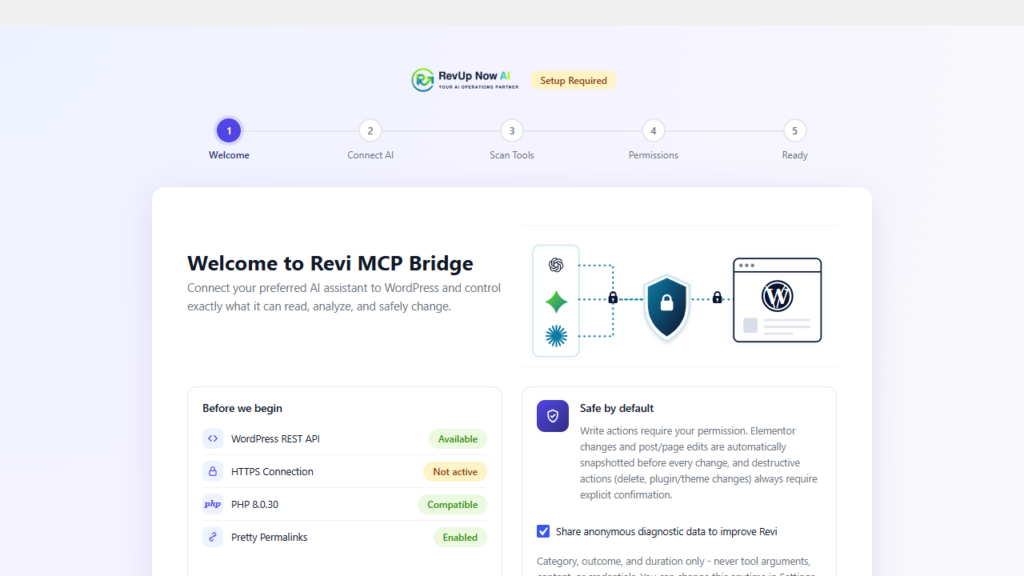
A live pre-flight check confirms your site is ready, and the wizard explains that nothing is exposed to AI until you finish setup.
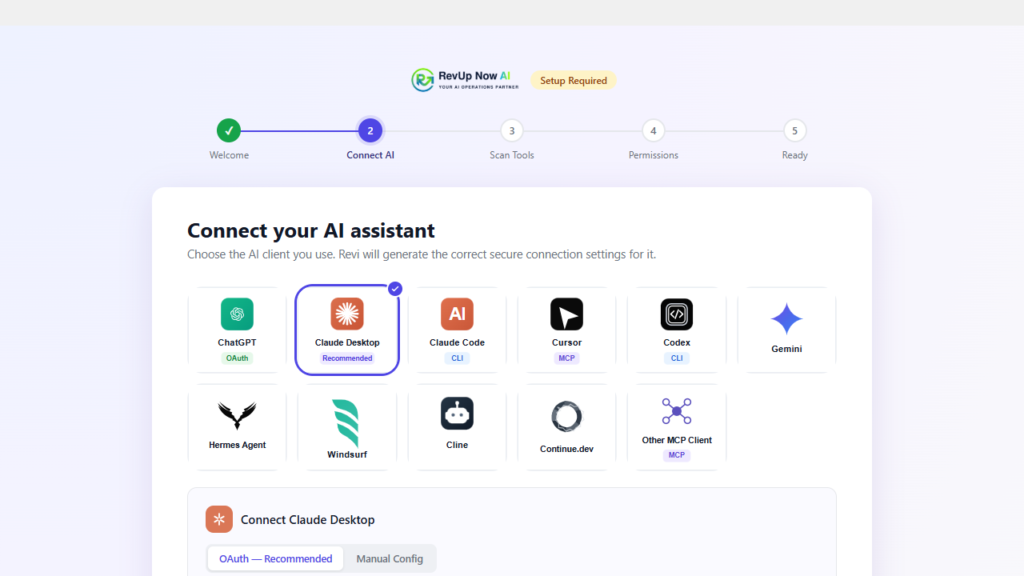
The wizard generates your API key and shows ready-to-paste config for Claude Desktop and Claude Code.
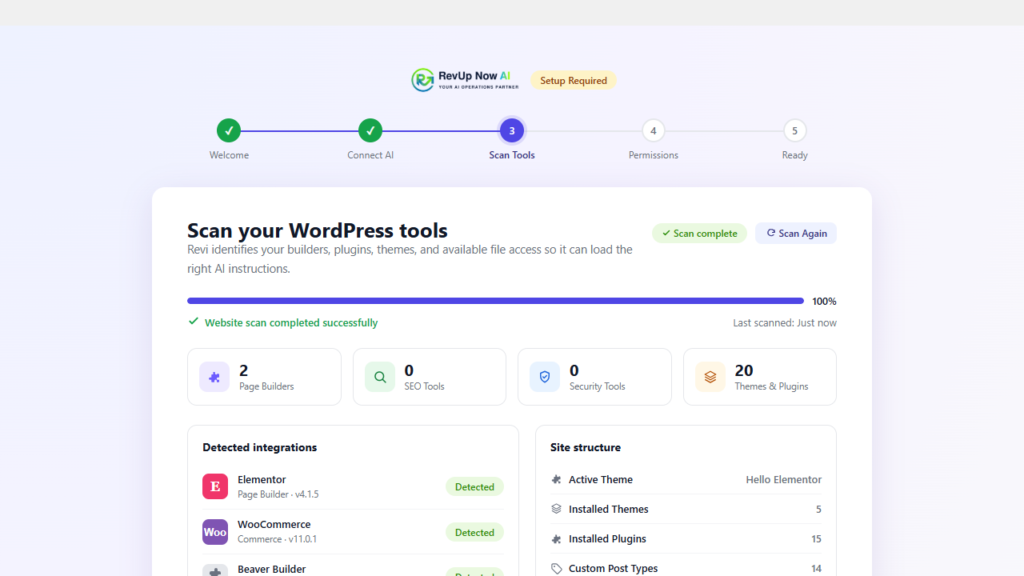
Revi detects what’s installed on your site, Elementor, WooCommerce, Yoast, and enables the matching tools automatically.
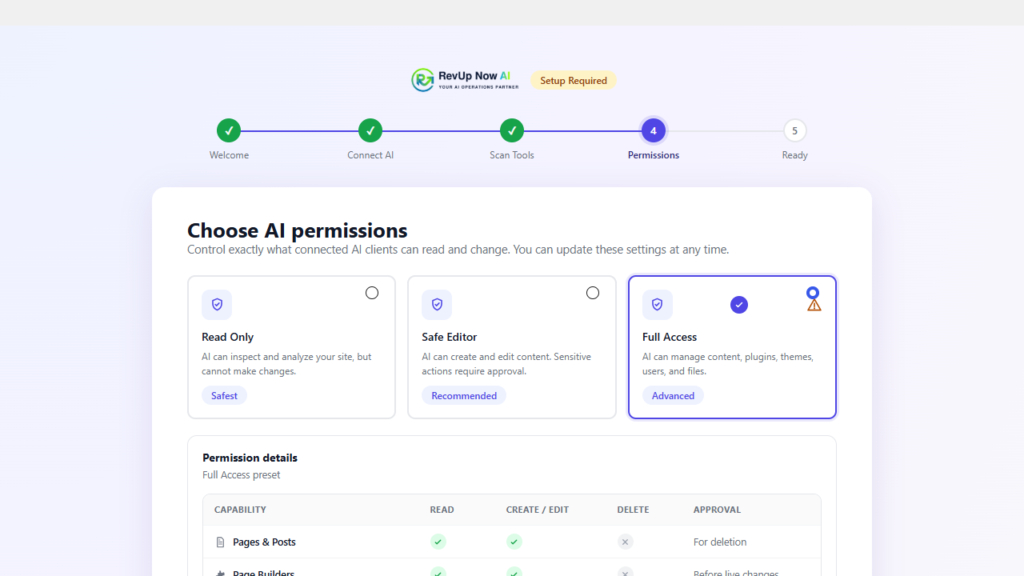
Choose granular scopes and a safety mode, publish approvals and automatic backups can be required before any AI-made change goes live.
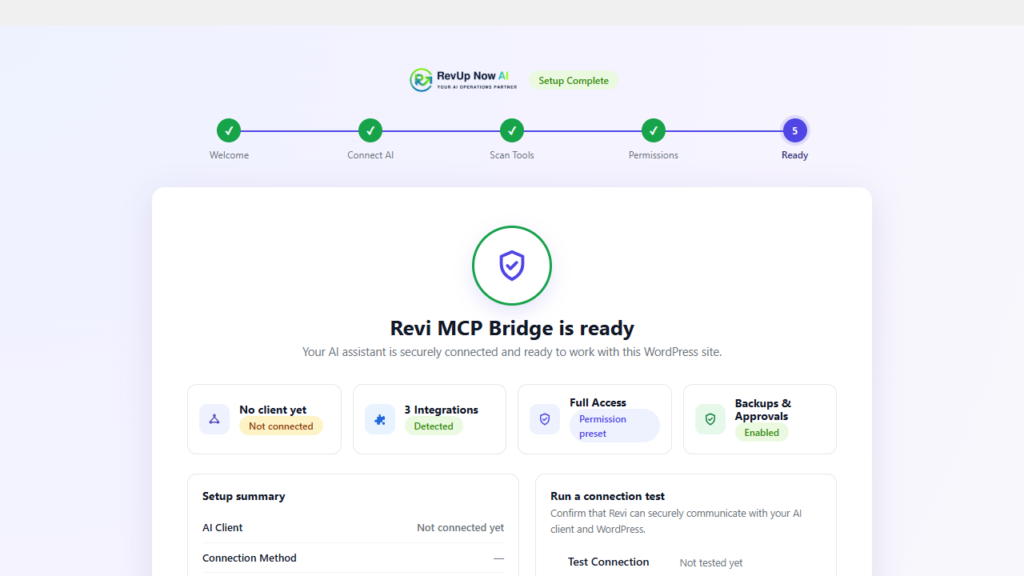
Setup is complete. Your API key is active and the site is ready to accept connections from any MCP-compatible AI client.
Every client below connects to the same endpoint: https://revupnow.ai/wp-json/revupnow-mcp/v1/mcp. Create an API key from Revi → Connection in your WordPress admin first.
Open Settings → Developer → Edit Config and add one of these, matching your OS. Windows needs the cmd /c wrapper, without it the connection silently fails.
Windows
{
  "mcpServers": {
    "wordpress": {
      "command": "cmd",
      "args": [
        "/c", "npx", "-y", "mcp-remote",
        "https://revupnow.ai/wp-json/revupnow-mcp/v1/mcp",
        "--header", "Authorization:Bearer YOUR_REVI_API_KEY"
      ]
    }
  }
}
macOS / Linux
{
  "mcpServers": {
    "wordpress": {
      "command": "npx",
      "args": [
        "-y", "mcp-remote",
        "https://revupnow.ai/wp-json/revupnow-mcp/v1/mcp",
        "--header", "Authorization:Bearer YOUR_REVI_API_KEY"
      ]
    }
  }
}Run from a terminal (add --scope user for every project, or --scope project to share via a committed .mcp.json):
claude mcp add --transport http wordpress "https://revupnow.ai/wp-json/revupnow-mcp/v1/mcp" --header "Authorization: Bearer YOUR_REVI_API_KEY"
Or add to .mcp.json directly:
{
  "mcpServers": {
    "wordpress": {
      "type": "http",
      "url": "https://revupnow.ai/wp-json/revupnow-mcp/v1/mcp",
      "headers": {
        "Authorization": "Bearer YOUR_REVI_API_KEY"
      }
    }
  }
}Add to .cursor/mcp.json (project) or ~/.cursor/mcp.json (all projects):
{
  "mcpServers": {
    "wordpress": {
      "url": "https://revupnow.ai/wp-json/revupnow-mcp/v1/mcp",
      "headers": {
        "Authorization": "Bearer YOUR_REVI_API_KEY"
      }
    }
  }
}Add to ~/.codeium/windsurf/mcp_config.json:
{
  "mcpServers": {
    "wordpress": {
      "serverUrl": "https://revupnow.ai/wp-json/revupnow-mcp/v1/mcp",
      "headers": {
        "Authorization": "Bearer YOUR_REVI_API_KEY"
      }
    }
  }
}In the Cline panel, go to Configure → Configure MCP Servers and add to cline_mcp_settings.json:
{
  "mcpServers": {
    "wordpress": {
      "type": "streamableHttp",
      "url": "https://revupnow.ai/wp-json/revupnow-mcp/v1/mcp",
      "headers": {
        "Authorization": "Bearer YOUR_REVI_API_KEY"
      },
      "disabled": false,
      "autoApprove": []
    }
  }
}Add to ~/.gemini/settings.json (user) or .gemini/settings.json (project):
{
  "mcpServers": {
    "wordpress": {
      "httpUrl": "https://revupnow.ai/wp-json/revupnow-mcp/v1/mcp",
      "headers": {
        "Authorization": "Bearer YOUR_REVI_API_KEY"
      }
    }
  }
}ChatGPT’s custom connector UI only accepts OAuth for remote MCP servers, not an API key. Enable OAuth in Revi → OAuth, then paste https://revupnow.ai/wp-json/revupnow-mcp/v1/mcp into ChatGPT’s connector settings. It will prompt you to sign in with your WordPress account automatically.
Any client that speaks the MCP Streamable HTTP transport can connect, check your client’s docs for its exact config file format. The generic shape:
{
  "mcpServers": {
    "wordpress": {
      "url": "https://revupnow.ai/wp-json/revupnow-mcp/v1/mcp",
      "headers": {
        "Authorization": "Bearer YOUR_REVI_API_KEY"
      }
    }
  }
}Ask it on a 15-minute call, you’ll get a straight answer either way.